








在 macos 上开启文件共享与隔空投送,需分别在系统设置中启用对应服务并配置权限。文件共享通过“系统设置”->“通用”->“共享”面板开启,可指定共享文件夹及访问用户;隔空投送则通过控制中心或“系统设置”->“通用”->“隔空投送”进行设置,选择接收范围即可。

如何开启并配置局域网文件共享
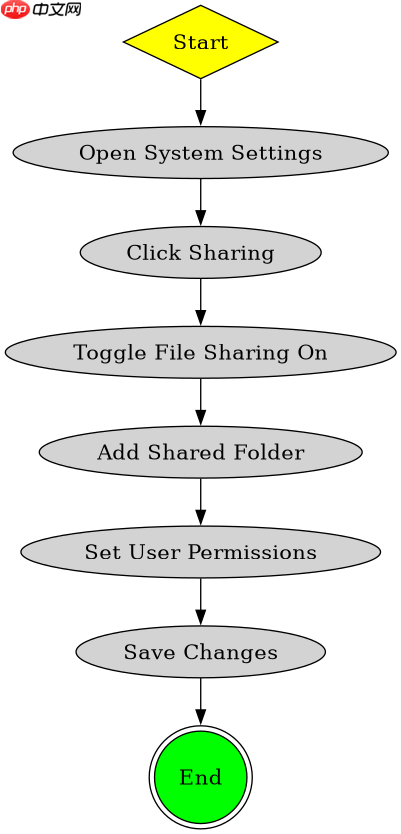
要允许其他设备访问 Mac 上的文件,需在系统设置中开启“文件共享”服务并添加共享文件夹。此操作会启动 SMB 或 AFP 协议,使同一网络下的 Windows、Linux 或 macOS 设备能够挂载该目录。若未添加具体文件夹,默认无内容可访问;若未授权用户,连接将被拒绝。

import subprocess
import os

# 检查当前文件共享状态
def check_file_sharing():
    result = subprocess.run(['systemsetup', '-getremotelogin'], capture_output=True, text=True)
    # 注意:systemsetup 不直接控制 Finder 共享,这里用 plist 查询更准确
    import plistlib
    plist_path = '/Library/Preferences/SystemConfiguration/com.apple.smb.server.plist'
    if os.path.exists(plist_path):
        with open(plist_path, 'rb') as f:
            data = plistlib.load(f)
            print("SMB Server Status:", data.get('ServerDescription', 'Not Configured'))
    else:
        print("SMB Service not active or configured via GUI")

check_file_sharing()
如何设置隔空投送的接收权限
隔空投送(AirDrop)用于在 Apple 设备间快速传输文件,其核心在于蓝牙和 Wi-Fi 的直接通信。用户可在“系统设置”中限制接收者仅为“联系人”或“所有人”,后者包含开放模式,易受干扰。若设备处于“仅限联系人”模式且对方非通讯录好友,传输请求会被静默丢弃。

import subprocess

# 获取 AirDrop 偏好设置
# 注意:AirDrop 设置存储在 com.apple.finder 中,键名为 AllowIncoming
# 值通常为 0 (Off), 1 (Contacts Only), 2 (Everyone)
def get_airdrop_status():
    result = subprocess.run(['defaults', 'read', 'com.apple.finder', 'AllowIncoming'],
                          capture_output=True, text=True)
    if result.returncode == 0:
        val = int(result.stdout.strip())
        status_map = {0: "Disabled", 1: "Contacts Only", 2: "Everyone"}
        print(f"AirDrop Status: {status_map.get(val, 'Unknown')} ({val})")
    else:
        print("Default value assumed (usually Everyone on newer macOS)")

get_airdrop_status()
当隔空投送设置为仅限联系人时,非联系人发送文件会发生什么
若隔空投送设置为“仅限联系人”,非通讯录中的设备尝试发送文件时,Mac 端不会弹出接收对话框,而是直接在后台忽略请求。发送方通常会显示“等待接受者响应”或最终超时失败。此行为由 com.apple.finder 的 AllowIncoming 键值控制,值为 1 时严格执行联系人白名单验证。