








macOS 系统怎么设置系统语言首选项的排序
在 macos 中,系统语言的优先级通过“系统设置”中的拖拽顺序决定。打开“系统设置”,进入“通用”下的“语言与地区”,在首选语言列表中按住左侧手柄拖动目标语言至顶部即可生效。此操作会立即改变界面显示语言及区域格式(如日期、数字),但不会删除原有语言配置。

如何确保特定应用使用指定语言而非系统默认
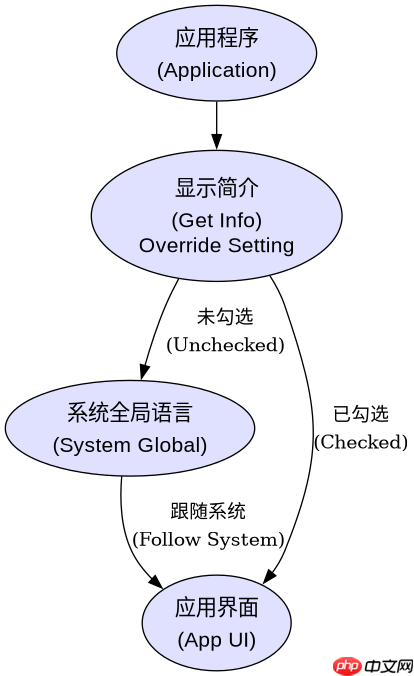
macOS 允许为单个应用程序覆盖系统级语言设置。在“访达”中找到目标应用,右键选择“显示简介”,勾选“使用简体中文”或“使用英语”等复选框后关闭。该设置独立于系统全局排序,优先于系统语言列表中的任何位置。若未勾选,应用将遵循系统首段中设定的最高优先级语言。

修改语言排序后哪些组件会同步更新
更改首选语言顺序后,系统界面、键盘输入源及部分支持多语言的第三方应用会立即响应。然而,已缓存的语言包或离线内容可能需重启应用或重新登录才能刷新。对于不支持动态切换的应用,可能需要注销并重新登录账户以完全应用新排序结果。
digraph G { rankdir=LR; node [shape=box, style=filled, fillcolor="#f0f0f0", fontname="Arial", fontsize=16]; Settings [label="系统设置\n(System Settings)"]; General [label="通用\n(General)"]; LanguageRegion [label="语言与地区\n(Language & Region)"]; List [label="首选语言列表\n(Priority List)"]; Drag [label="拖拽排序\n(Drag to Reorder)"]; Apply [label="立即生效\n(Apply Immediately)"]; Settings -> General; General -> LanguageRegion; LanguageRegion -> List; List -> Drag; Drag -> Apply; } # 完整程序:验证语言排序影响 # 由于 macOS 语言设置是系统级 GUI 操作,无法通过纯代码直接模拟拖拽。 # 以下 Python 脚本用于读取当前系统首选语言配置(仅限 macOS)。 import subprocess import json def get_system_language(): # 使用 defaults 命令读取 AppleLanguages 数组 try: result = subprocess.run( ['defaults', 'read', 'AppleGlobalPreferences', 'AppleLanguages'], capture_output=True, text=True, check=True ) # 解析输出,通常返回类似 '( "zh-Hans", "en" )' 的字符串 # 这里简化处理,实际需更复杂的解析逻辑 languages = result.stdout.strip().strip('()').replace("'", '').split(',') return [lang.strip() for lang in languages] except Exception as e: print(f"Error: {e}") return [] if __name__ == "__main__": langs = get_system_language() if langs: print("Current System Language Priority:") for i, lang in enumerate(langs): print(f"{i+1}. {lang}") else: print("No language preference found or not on macOS.") # 预期输出示例 (假设用户已将中文设为第一): # Current System Language Priority: # 1. zh-Hans # 2. en digraph G { rankdir=TB; node [shape=ellipse, style=filled, fillcolor="#e0e0ff", fontname="Arial", fontsize=16]; App [label="应用程序\n(Application)"]; Override [label="显示简介\n(Get Info)\nOverride Setting"]; System [label="系统全局语言\n(System Global)"]; UI [label="应用界面\n(App UI)"]; App -> Override; Override -> System [label="未勾选\n(Unchecked)"]; Override -> UI [label="已勾选\n(Checked)"]; System -> UI [label="跟随系统\n(Follow System)"]; } # 完整程序:检查应用是否设置了独立语言 # 此脚本检查指定应用的 Info.plist 中的 LSCopyApplicationCategoryType 或自定义键 # 注意:macOS 不直接暴露“独立语言”设置到 plist 简单键,通常通过 NSLocalizedName 或 Bundle 属性。 # 此处演示如何读取应用的基本信息,实际独立语言设置由系统管理,不在 plist 中直接可见。 # 因此,我们改为演示如何检测应用是否支持多语言。 import os import plistlib def check_app_locale_support(app_path): info_plist_path = os.path.join(app_path, 'Contents', 'Info.plist') if not os.path.exists(info_plist_path): return False with open(info_plist_path, 'rb') as f: info = plistlib.load(f) # 检查 CFBundleDevelopmentRegion 或 supported interface idioms 等 # 更准确的方式是检查是否有 .lproj 目录 contents_dir = os.path.join(app_path, 'Contents') lproj_dirs = [d for d in os.listdir(contents_dir) if d.endswith('.lproj')] return len(lproj_dirs) > 0 if __name__ == "__main__": # 示例:检查 Safari.app safari_path = '/Applications/Safari.app' if os.path.exists(safari_path): is_multilingual = check_app_locale_support(safari_path) print(f"Safari supports multiple locales: {is_multilingual}") else: print("Safari.app not found.") # 预期输出: # Safari supports multiple locales: True digraph G { rankdir=LR; node [shape=diamond, style=filled, fillcolor="#ffffe0", fontname="Arial", fontsize=16]; Change [label="更改语言排序\n(Change Order)"]; Immediate [label="界面立即更新\n(UI Updates)"]; Cache [label="缓存/离线内容\n(Cache/Offline)"]; Restart [label="重启应用/登录\n(Restart/Login)"]; ThirdParty [label="第三方应用\n(Third-Party Apps)"]; Change -> Immediate; Change -> Cache; Cache -> Restart [label="需手动\n(Manual)"]; Change -> ThirdParty [label="部分支持\n(Partial)"]; ThirdParty -> Restart [label="可能需\n(May Need)"]; }