






在python中为tkinter界面添加深色模式切换功能,核心做法是利用`ttk.style`对象动态修改主题样式(theme)中的颜色属性。具体操作是创建一个包含浅色和深色两套配色方案的字典,通过一个按钮或菜单项触发回调函数,调用`style.configure()`和`style.map()`方法更新控件的foreground、background等属性,从而实现界面的实时切换。

如何定义并应用基础的颜色样式配置
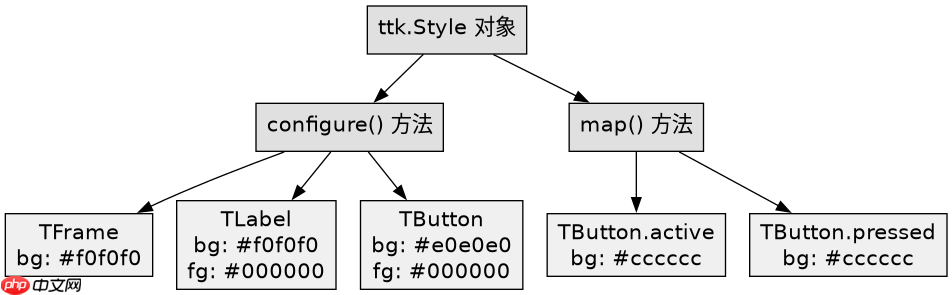
直接回答本节问题:需要实例化`ttk.Style`,定义两套颜色映射字典,并使用`configure`方法将默认状态下的背景色和前景色应用到关键控件如`TFrame`、`TLabel`和`TTKButton`上。
import tkinter as tk
from tkinter import ttk

class DarkModeApp:
    def __init__(self, root):
        self.root = root
        self.style = ttk.Style()
        self.is_dark_mode = False

        # 定义浅色模式样式
        self.light_theme = {
            'TFrame': {'background': '#f0f0f0'},
            'TLabel': {'background': '#f0f0f0', 'foreground': '#000000'},
            'TButton': {'background': '#e0e0e0', 'foreground': '#000000'},
            'TFramet.TFrame': {'background': '#ffffff'}
        }

        # 定义深色模式样式
        self.dark_theme = {
            'TFrame': {'background': '#333333'},
            'TLabel': {'background': '#333333', 'foreground': '#ffffff'},
            'TButton': {'background': '#555555', 'foreground': '#ffffff'},
            'TFramet.TFrame': {'background': '#444444'}
        }

        self.apply_theme(self.light_theme)
        self.setup_ui()

    def apply_theme(self, theme):
        for element, colors in theme.items():
            self.style.configure(element, **colors)
            # 对于按钮,还需要处理hover状态
            if element == 'TButton':
                self.style.map('TButton',
                    background=[('active', '#666666')],
                    foreground=[('active', '#ffffff')]
                )

    def setup_ui(self):
        main_frame = ttk.Frame(self.root, style='TFrame')
        main_frame.pack(fill=tk.BOTH, expand=True)

        label = ttk.Label(main_frame, text="Hello World", style='TLabel')
        label.pack(pady=20)

        toggle_btn = ttk.Button(main_frame, text="Toggle Dark Mode", command=self.toggle_mode)
        toggle_btn.pack(pady=10)

    def toggle_mode(self):
        self.is_dark_mode = not self.is_dark_mode
        if self.is_dark_mode:
            self.apply_theme(self.dark_theme)
        else:
            self.apply_theme(self.light_theme)

if __name__ == "__main__":
    root = tk.Tk()
    app = DarkModeApp(root)
    root.mainloop()
运行上述代码后,点击“Toggle Dark Mode”按钮,界面将从浅灰色背景变为深灰色背景,文字颜色也会相应反转。预期结果是所有使用`TFrame`、`TLabel`和`TButton`样式的控件都遵循当前激活的主题配色。
立即学习“Python免费学习笔记(深入)”;

Nodriver是Undetected-Chromedriver的官方继承者,提供异步浏览器自动化功能,可直接与Chrome DevTools Protocol通信,无需Selenium或WebDriver依赖。专为规避反机器人系统(包括Cloudflare和Imperva)的隐蔽网络自动化而构建。
如何处理特定控件的状态变化与细节调整
直接回答本节问题:除了基础的`configure`,必须使用`style.map()`来处理鼠标悬停(active)、按下(pressed)等状态下的颜色变化,以确保交互反馈符合深色模式的视觉习惯。

# 在 apply_theme 方法中补充 map 逻辑
    def apply_theme(self, theme):
        for element, colors in theme.items():
            self.style.configure(element, **colors)

        # 专门处理 TButton 的状态映射
        base_bg = theme['TButton']['background']
        hover_bg = '#666666' if self.is_dark_mode else '#cccccc'

        self.style.map('TButton',
            background=[('active', hover_bg), ('pressed', '#444444')],
            foreground=[('active', '#ffffff'), ('pressed', '#ffffff')]
        )

        # 处理 Entry 输入框的背景色
        self.style.configure('TEntry',
            fieldbackground='#ffffff' if not self.is_dark_mode else '#222222',
            foreground='#000000' if not self.is_dark_mode else '#ffffff'
        )
        self.style.map('TEntry',
            fieldbackground=[('focus', '#333333' if self.is_dark_mode else '#e0e0e0')]
        )
这段代码展示了如何在切换主题时动态调整按钮的悬停颜色和输入框的焦点颜色。预期结果是当鼠标悬停在按钮上时,背景色会平滑过渡到指定的悬停色;当输入框获得焦点时,其背景色也会根据当前模式进行高亮显示,从而提升用户体验。
基于程序中 is_dark_mode 变量状态的具体问题
直接回答该问题:当`is_dark_mode`变量为`True`时,程序内部逻辑应确保所有新创建的控件或后续动态更新的样式都继承深色主题的配置,否则会出现部分控件未变色的情况。
在实际开发中,如果界面中有动态生成的控件,必须在创建后立即应用当前的主题样式。例如,如果在`toggle_mode`之后新增了一个`Label`,它不会自动变成深色,除非显式地再次调用`apply_theme`或者在创建时传入当前主题参数。因此,保持`is_dark_mode`状态与UI渲染的一致性是关键。若需验证,可在切换模式后尝试动态添加一个新标签,观察其颜色是否符合预期。若不符合,则说明需要在动态创建逻辑中加入主题应用的步骤。