







在css中使用 scroll-padding 可以设置滚动容器在滚动到锚点时保留的空白区域,从而防止内容被固定定位(如吸顶导航栏)遮挡。只需在 html 或滚动容器上设置 scroll-padding-top 为导航栏高度即可生效。

scroll-padding-top 如何配合固定导航栏使用
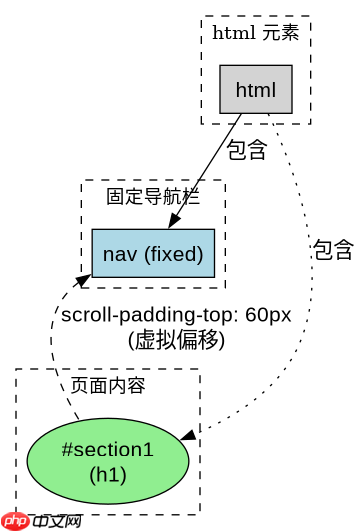
当页面顶部有固定定位的导航栏时,点击锚链接会导致标题被导航栏遮住。通过给 html 元素添加 scroll-padding-top 属性,浏览器会在计算滚动位置时自动减去该值,确保目标元素完整可见。
/* CSS 代码 */
html {
  scroll-padding-top: 60px; /* 假设导航栏高度为 60px */
}

/* HTML 结构示例 */
<nav style="position: fixed; top: 0; height: 60px; width: 100%; background: #333;">
  <a href="#section1">跳转到第一节</a>
</nav>

<div id="section1" style="height: 100vh; margin-top: 50px; background: #f0f0f0;">
  <h1>第一节内容</h1>
</div>
预期结果:点击导航栏链接后,页面平滑滚动至 #section1,且 <h1></h1> 标题位于导航栏下方 60px 处,完全可见。
立即学习“前端免费学习笔记(深入)”;
不同滚动容器的 scroll-padding 差异
scroll-padding 不仅适用于 html,也可应用于任何设置了 overflow: auto 或 scroll 的块级元素。对于非根元素的滚动容器,需直接在对应元素上设置属性,否则默认行为可能不符合预期。

/* CSS 代码 */
.scroll-container {
  overflow-y: auto;
  height: 400px;
  scroll-padding-top: 20px; /* 针对该容器的内边距 */
}

/* HTML 结构示例 */
<div class="scroll-container">
  <div id="target" style="height: 200px; background: lightblue;">
    <p>目标内容</p>
  </div>
  <button onclick="document.querySelector('.scroll-container').scrollTo({top: document.getElementById('target').offsetTop, behavior: 'smooth'})">
    滚动到目标
  </button>
</div>预期结果:点击按钮后,.scroll-container 内部滚动至 #target,且 #target 距离容器顶部保留 20px 间距,避免紧贴边缘。
当 scroll-padding 与 margin 冲突时的处理
若目标元素自身设置了外边距(margin),scroll-padding 会在此基础上额外增加空白。例如,若 scroll-padding-top 为 60px,而目标元素 margin-top 为 20px,则最终视觉间距为 80px。此时可通过调整 scroll-padding 值或移除目标元素 margin 来控制间距。